
Add a document
The Baraka mobile app provides users with the ability to store digital copies of their personal documents on a single platform.
This feature is designed to keep necessary information always at hand and to use it quickly in various banking transactions.
Follow this sequence to enter your personal documents into the system:
Step 1: Accessing the Documents Section
- Find and access the “My Documents” section from the main menu of the app.
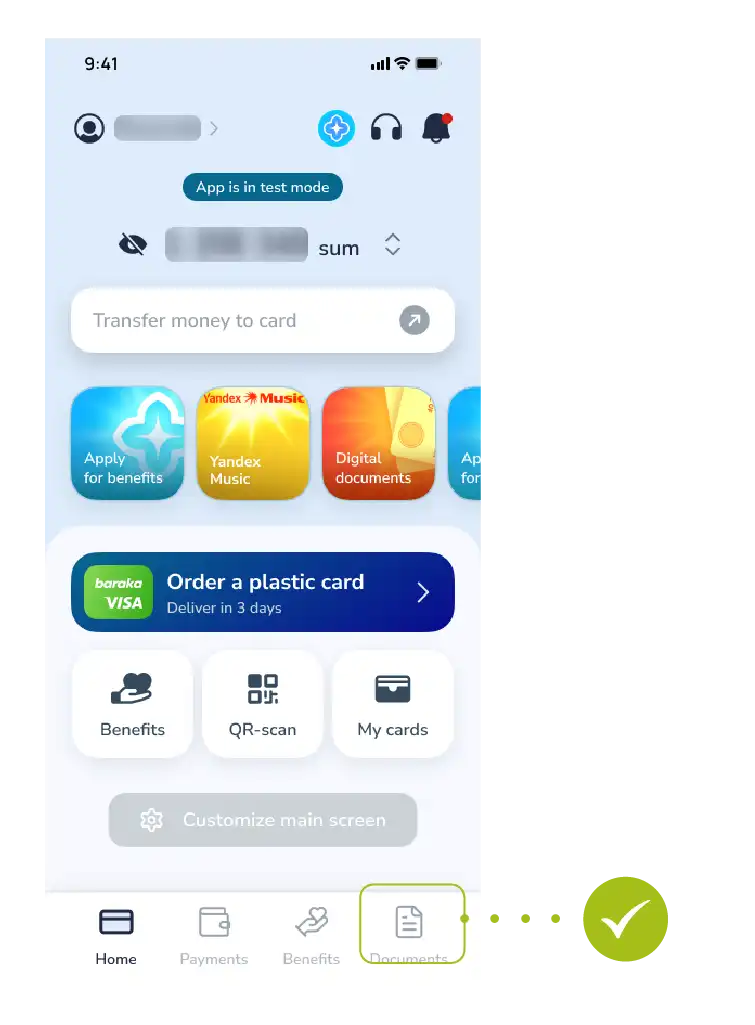
- Here you can manage all your previously added documents.
Step 2: Adding a New Document
- Tap the “Add Document” button located at the bottom or top of the screen.
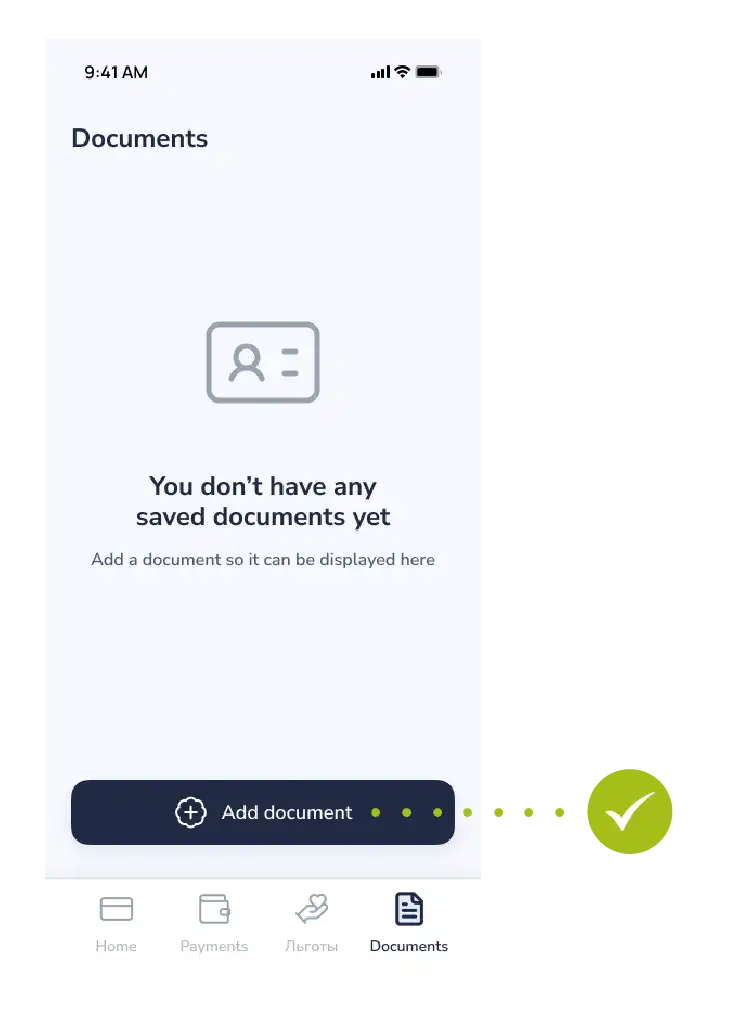
- After that, the system will present a list of documents that can be added.
Step 3: Selecting the Document Type
- Select the required document type from the list that opens.
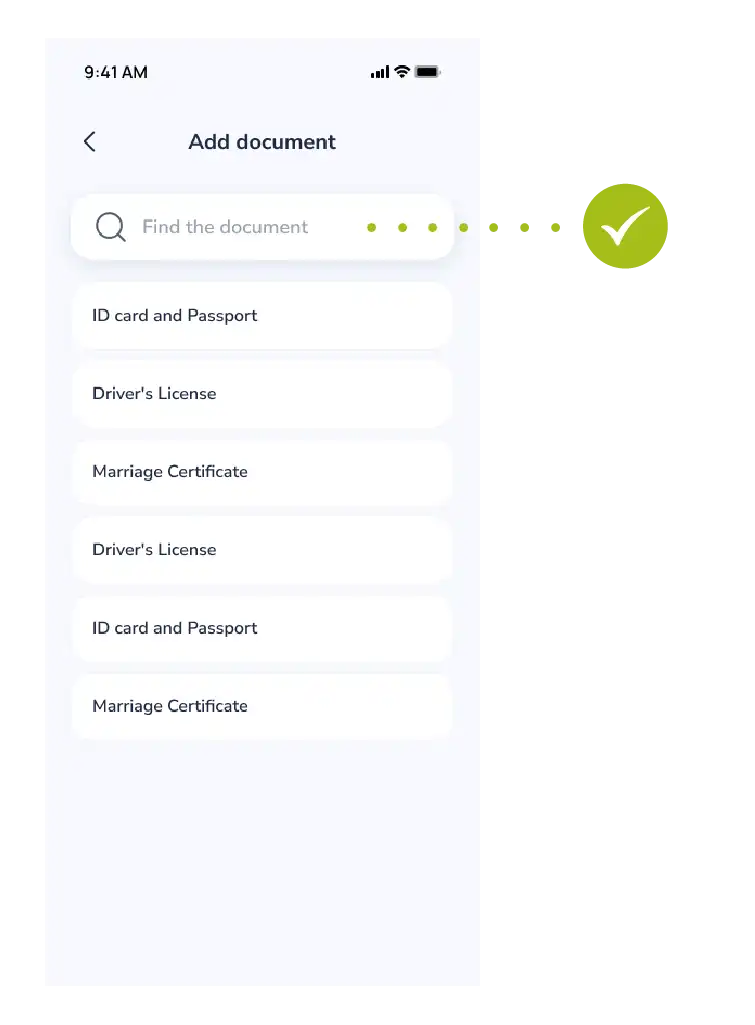
- For example: Civil passport of the Republic of Uzbekistan;
- ID card;
- Driver’s license;
- And other types of official documents.
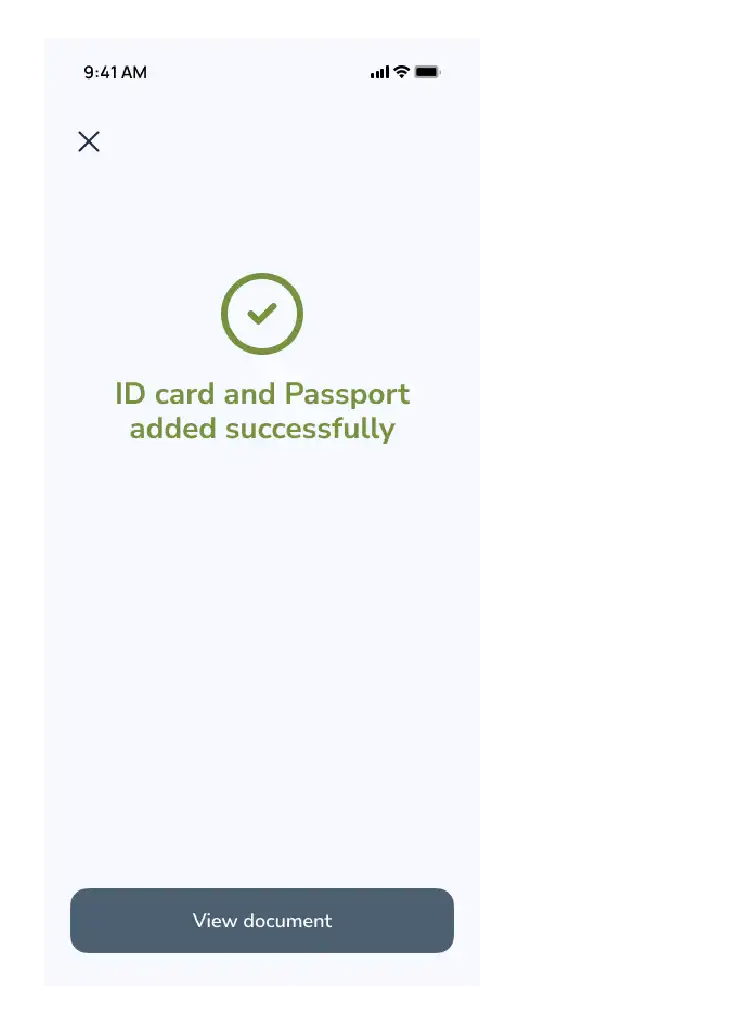
Step 4: Finalizing the Process
- Once the selection is made (and information is entered if required), the system saves the document to the database.
- Now your document will appear in the “My Documents” list and will be available for use at any time.
Security Note: Your document data is stored in an encrypted format, and its confidentiality is guaranteed by the system.

