
Password Recovery Guide
This manual explains the procedure for resetting a user account password in the event that it is forgotten or lost. The process includes verifying the user’s personal data, completing identification, and setting a new password that meets security requirements. By following the sequence outlined below, you can restore access to the system in a short period of time.
Step 1: Starting the Process
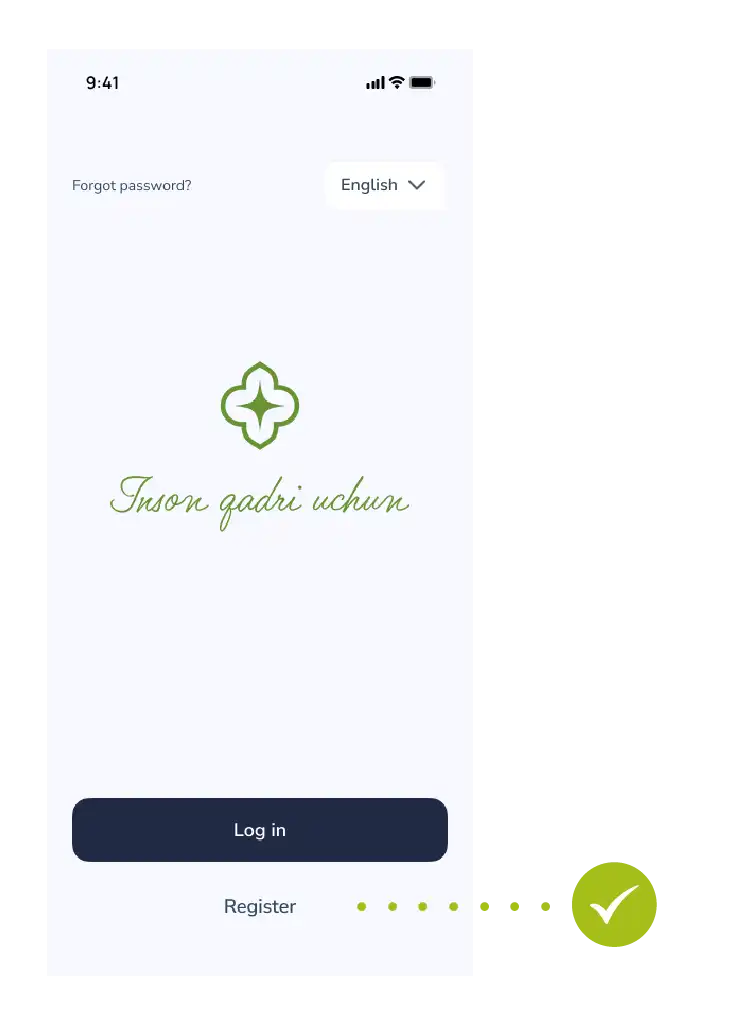
First, go to the main page of the system.
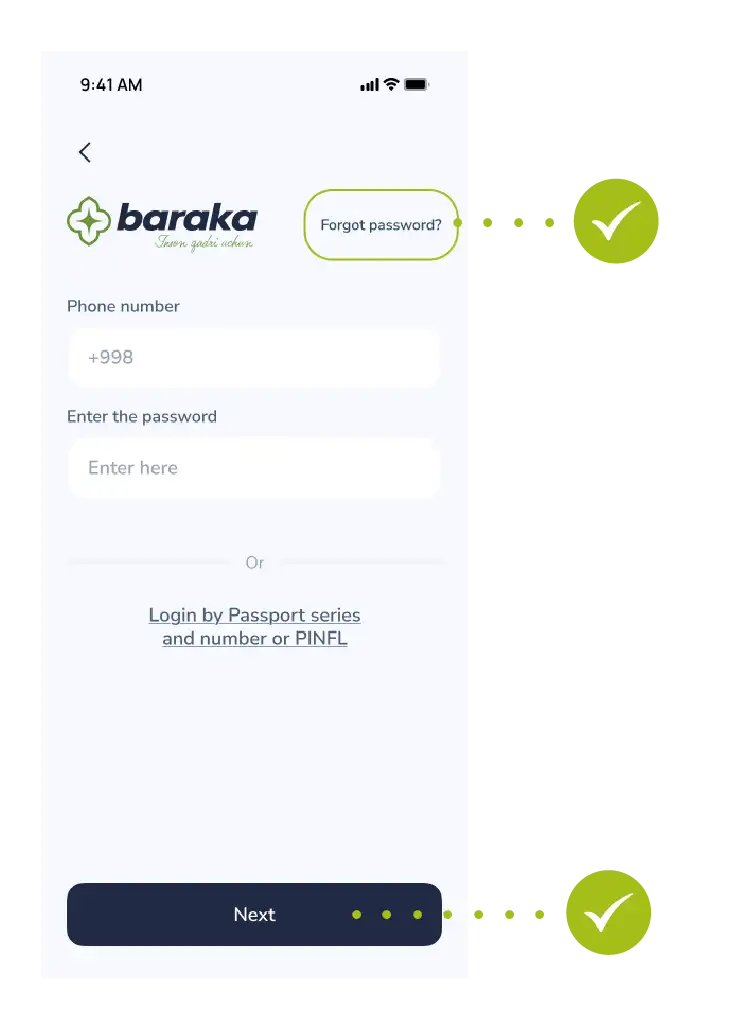
- Login: Tap the “Login” button on the main menu.
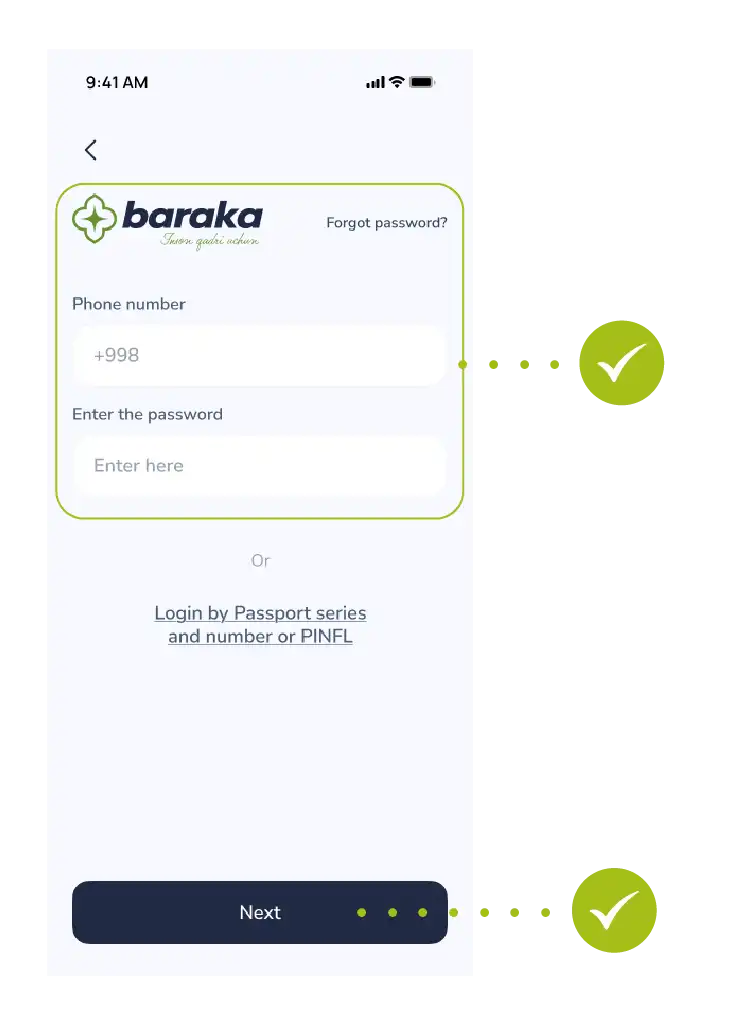
- Request: In the window that appears, usually below the login and password fields, you will see “Forgot password?”. Select it.
Step 2: Identity Verification
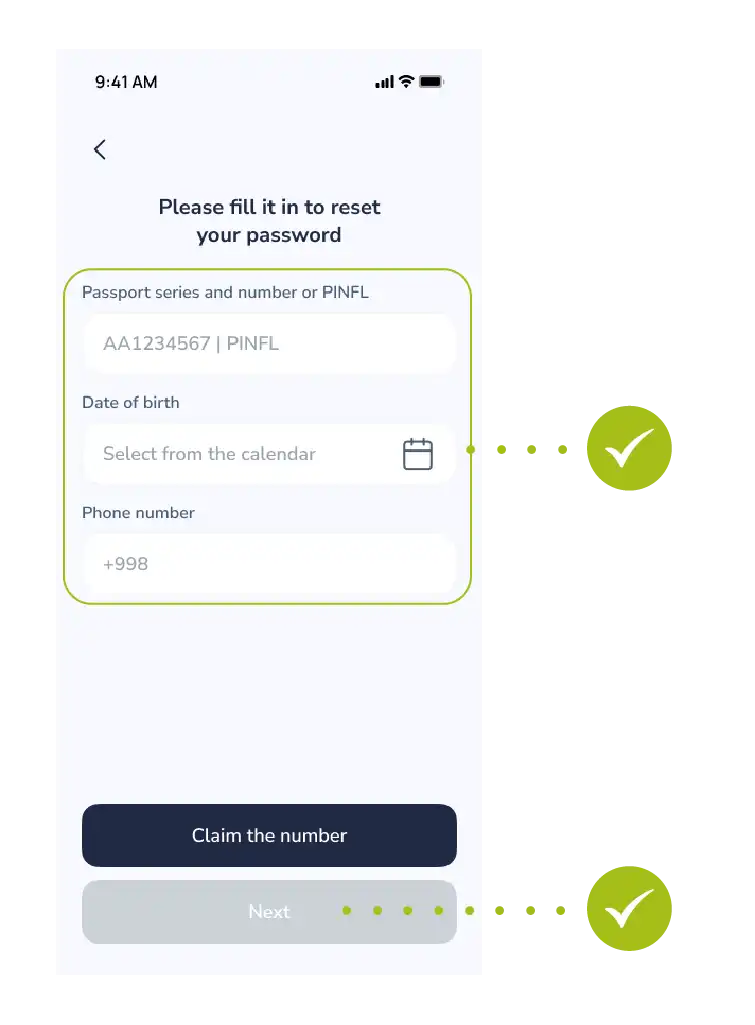
To let the system know it is really you, you must enter the information accurately:
- PINFL (JSHSHIR): Enter the 14-digit number at the bottom of your passport or your passport series and number.
- Date of Birth: Select your day, month, and year of birth from the calendar.
- Contact: Enter the phone number you used during registration.
- This is very important because the verification code will be sent to this exact number.
- Tap the “Next” button to continue.
Step 3: Security and Verification
This step is required to protect your account from outsiders.
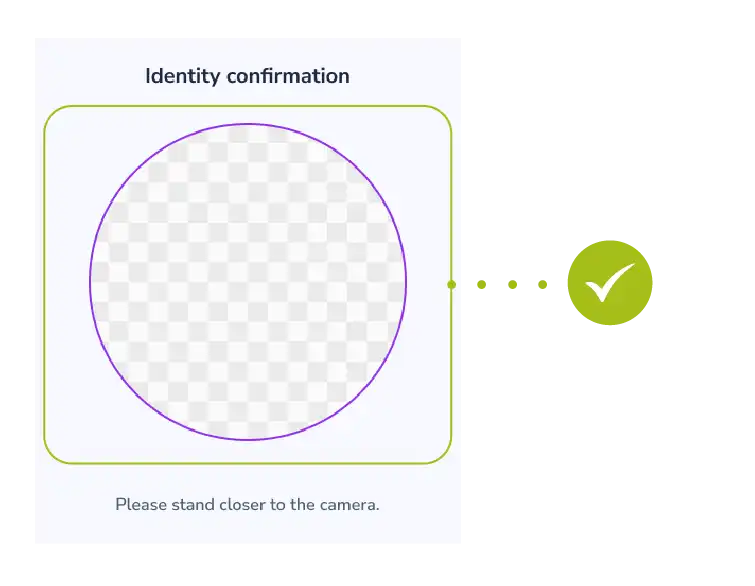
- Identification: Verify your identity according to the system instructions (this could be taking a photo or another method).
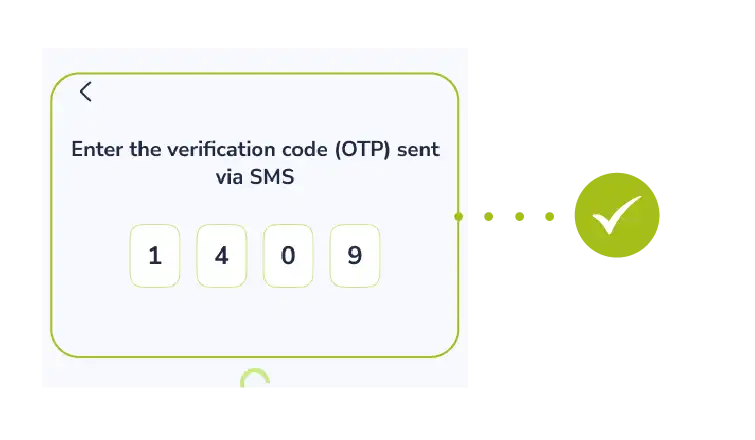
- OTP code: Enter the secret code (one-time password) received via SMS into the designated field.
Note: Never share the verification code with strangers, even with those who introduce themselves as bank or government officials!
Step 4: Creating a New Password
Now we come to the most important part. Forget your old password, let’s create a new one:
- Think of a new password: It is recommended that the password consists of at least 8 characters, including uppercase and lowercase letters, and numbers.
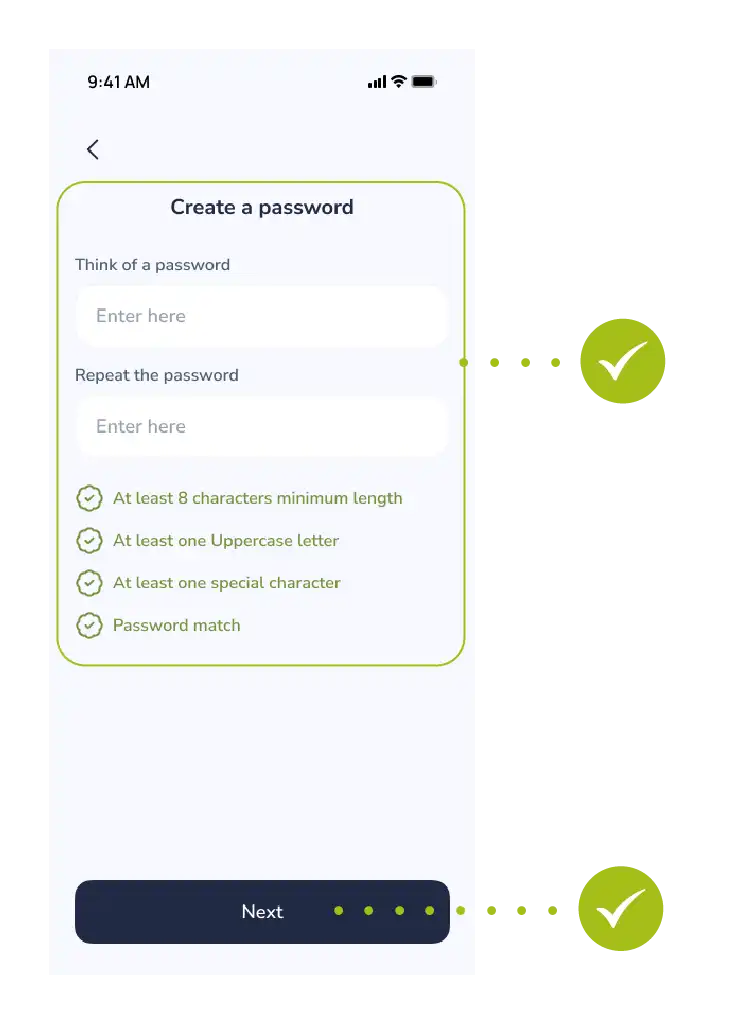
- Input and Confirmation: Type the new password in the first row, then re-enter the exact same password in the second row to ensure there are no mistakes.
- Finalizing: Tap the “Next” button.
- Do you see the message “Your password has been successfully updated” on your screen? Then everything is fine!
- Now you can easily log into the system using your new password.
Do not forget to save it in a safe place or memorize it!

