
 Uzbek
 Русский
 Uzbek (Cyrillic)
 Karakalpak
 English
View Card CVV Code
The Baraka mobile app allows you to view card details remotely, including the CVV code.
This process is protected by high-level security measures and includes a function to save the details to your device.
Step by step
- 1
Accessing Card Settings
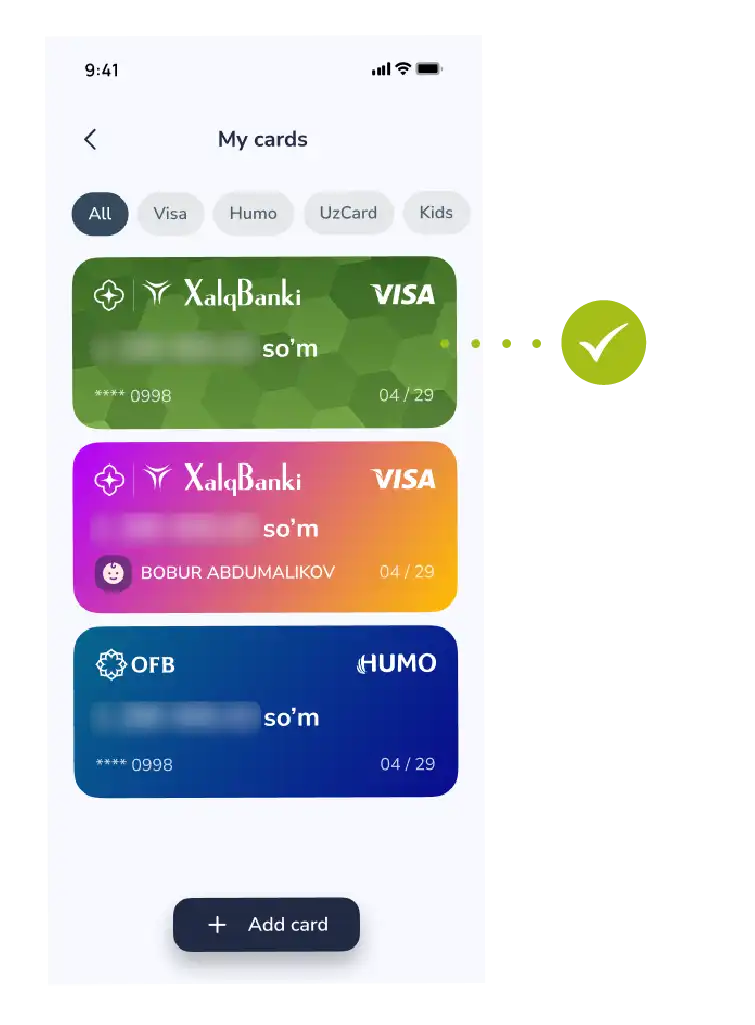
Go to the "My Cards" section on the main screen of the app.
Select the required Baraka card from the list.
At this stage, you will see the overall balance and status of your card.
- 2
Revealing the Information
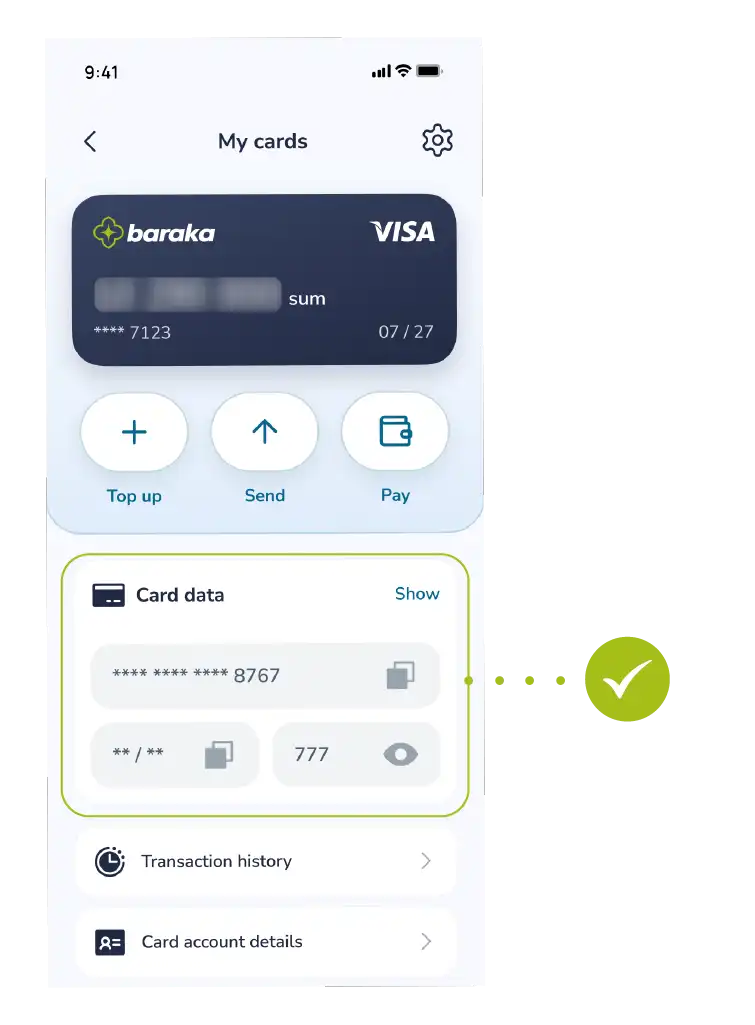
Tap the "Show" button (eye icon) next to the card image or in the details window.
Initially, for security reasons, the CVV and a part of the card number will be hidden.
- 3
Security Verification
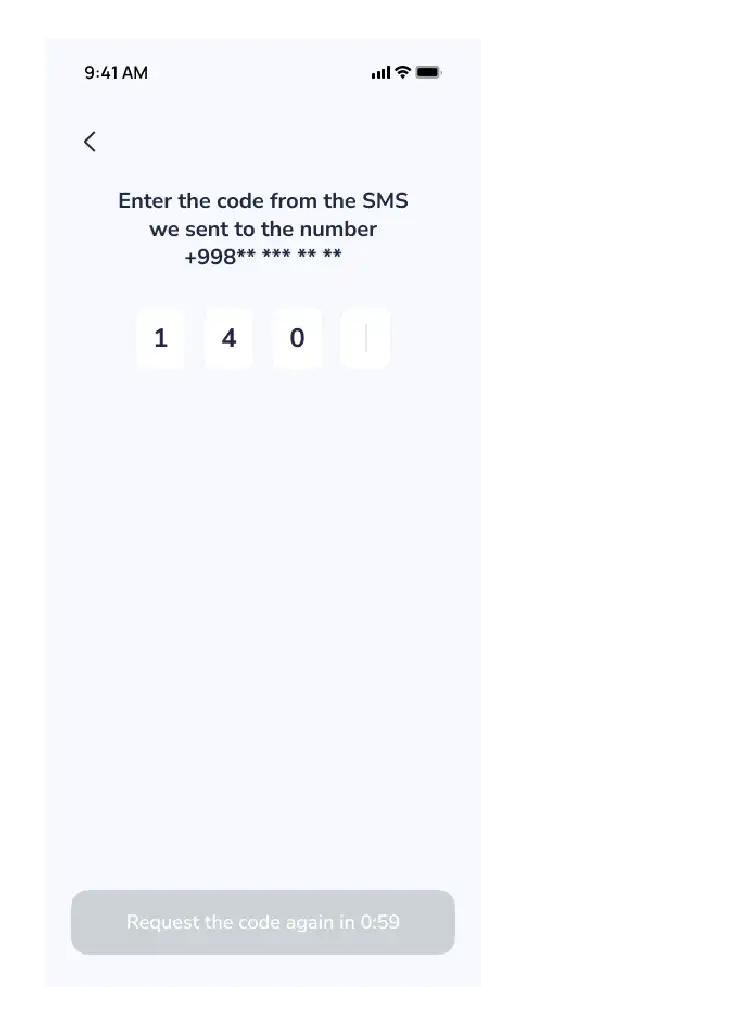
The system will verify your identity to display confidential information.
Enter the one-time OTP code sent to your phone number into the designated field and confirm the action.
- 4
Viewing and Saving Card Details
After confirmation, the following information will be fully displayed on the screen:
Card number (16 digits);
Expiration date;
CVV/CVC code (3-digit secret code).
If necessary, you can download this information as an image to your phone's memory by tapping the "Save" button.
Important Note: Never share your CVV code and OTP passwords with third parties, even with those who introduce themselves as bank employees.
Contact us
We are here to help.


Questions about your card
Call the bank that issued your card.
- Xalq Bank1106
- Aloqabank+998 71 230 77 77

Call from the app
In the main menu, tap “Contact” — the headphones button. Then tap “Call”.


