
 Uzbek
 Русский
 Uzbek (Cyrillic)
 Karakalpak
 English
Saved payments
Saving transactions completed through the Baraka mobile app as a template allows you to perform subsequent payments even faster and more conveniently.
This feature helps users save time by eliminating the need to re-enter details for regular payments.
Creating saved payments for regular services is carried out in the following steps:
Step by step
- 1
Making the Payment
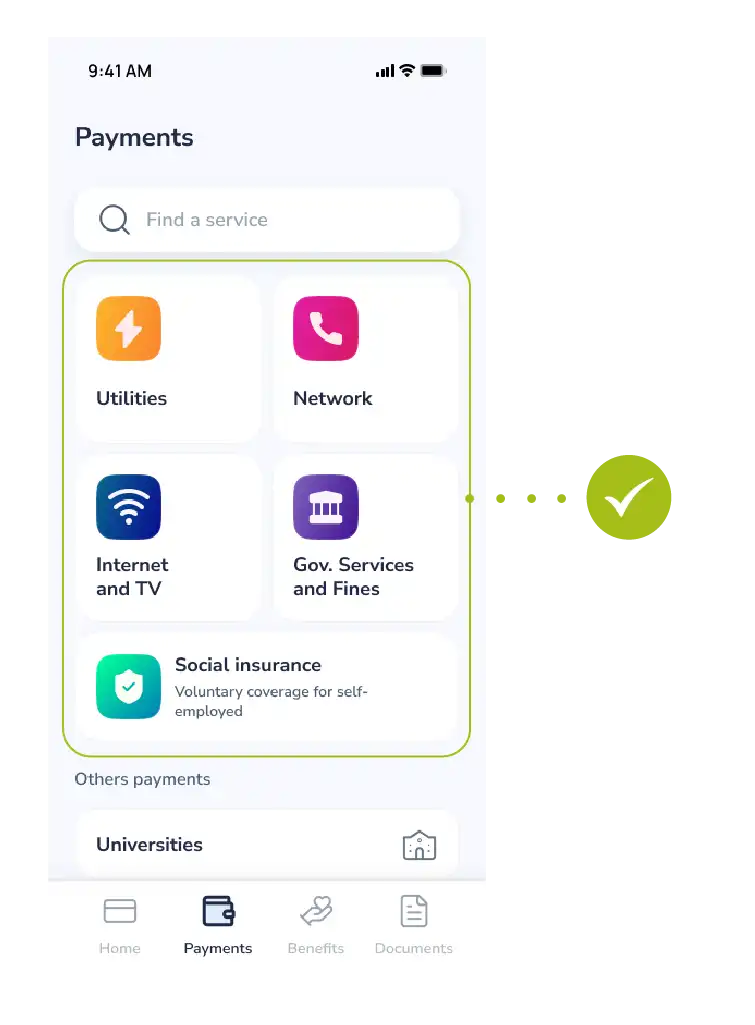
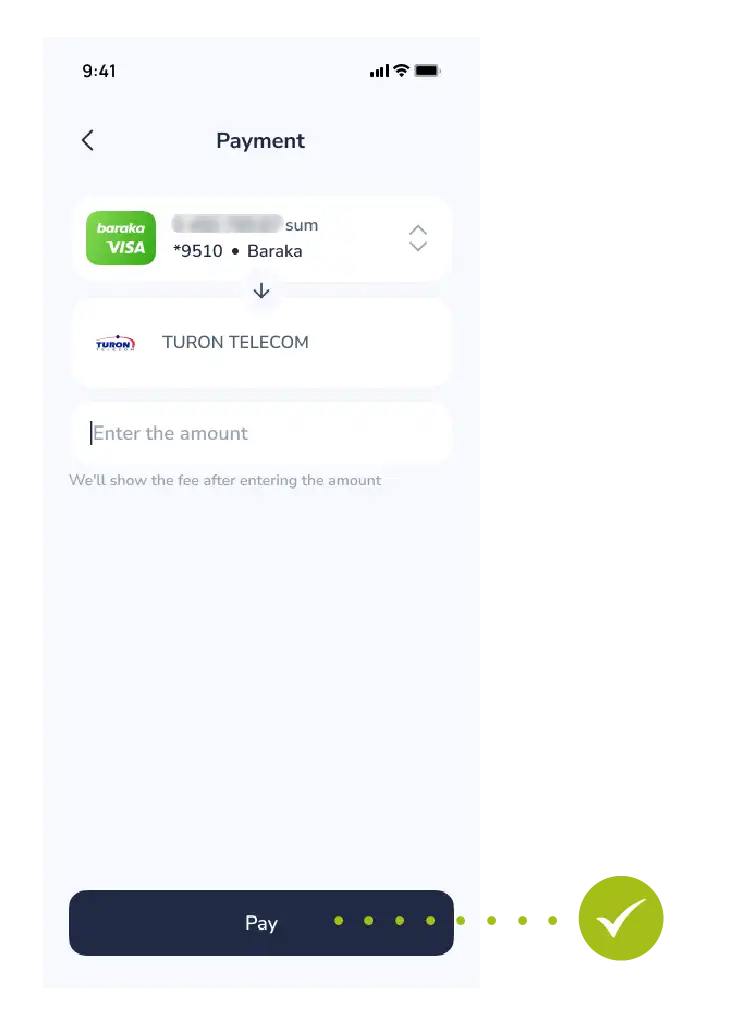
Access the “Payments” section in the main menu.
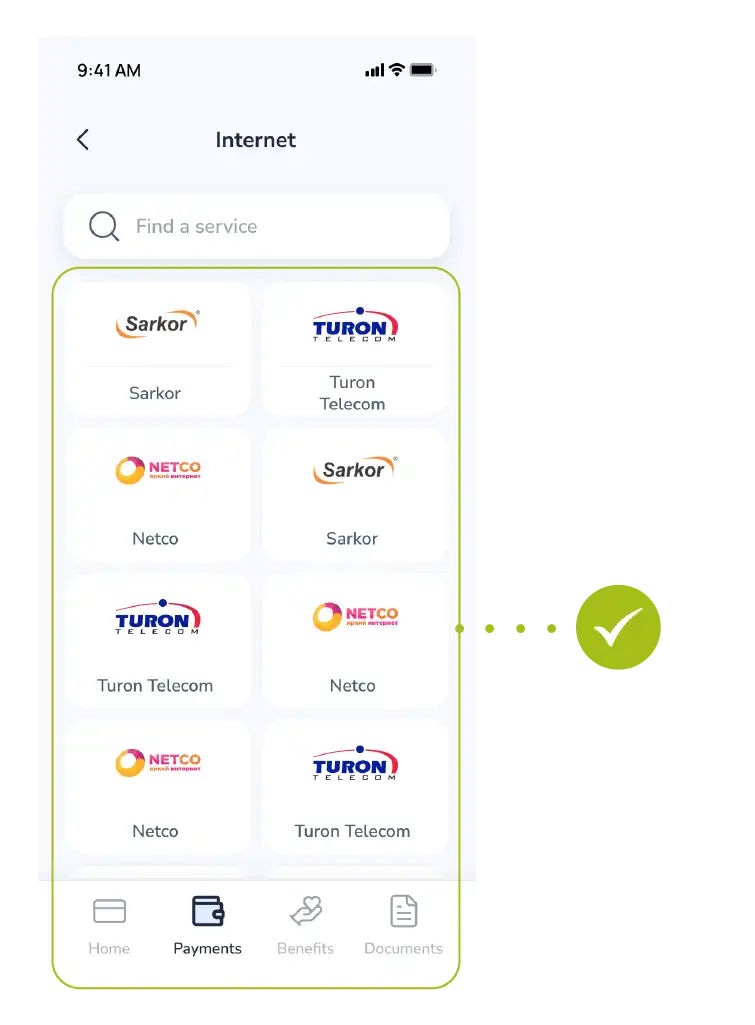
Select the required type of service (Internet, mobile communication, utilities, etc.).
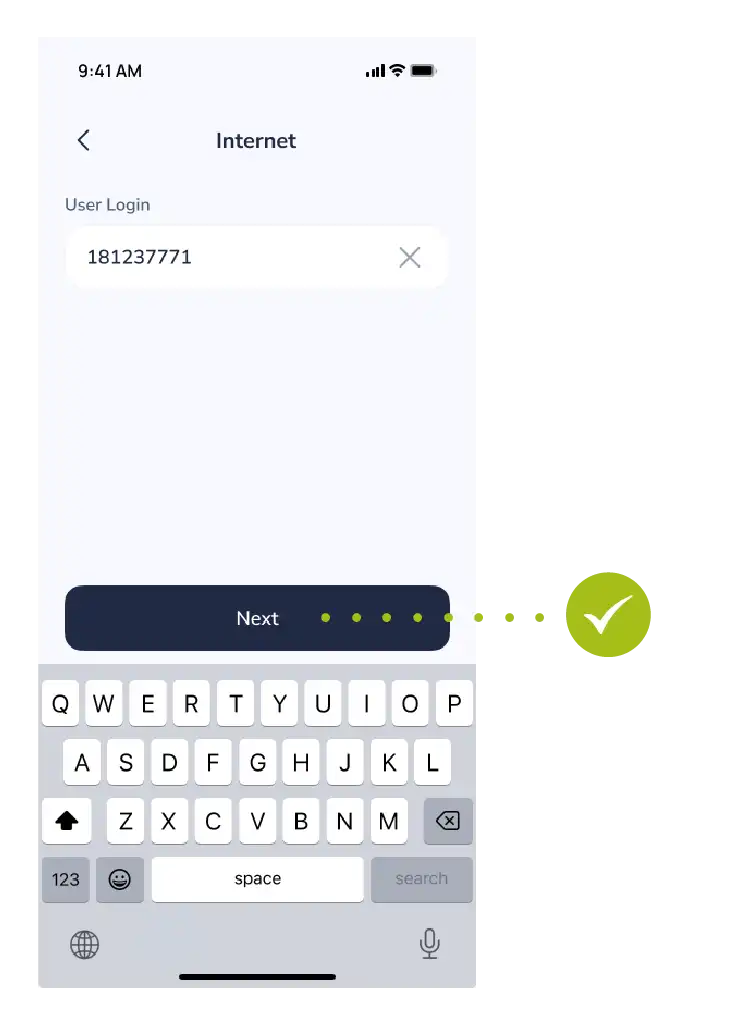
Enter the relevant account number or subscriber code and tap the “Next” button.
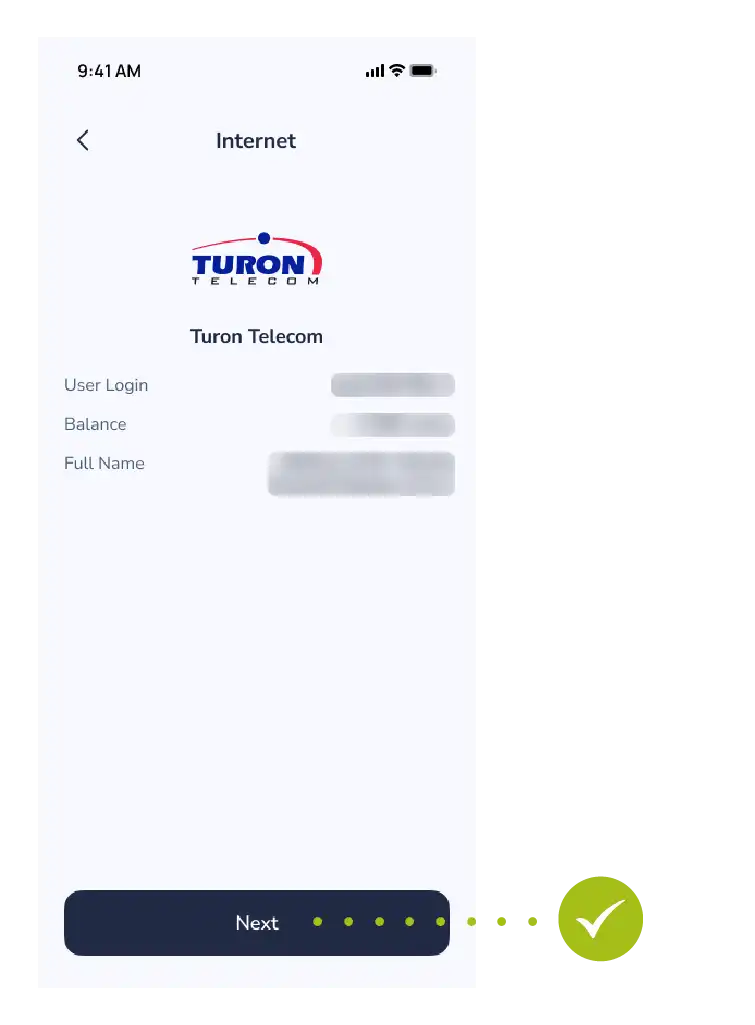
The payment details will be displayed on the screen.
Select the card from which the funds will be debited and complete the transaction by tapping the “Pay” button.
- 2
Creating the Template
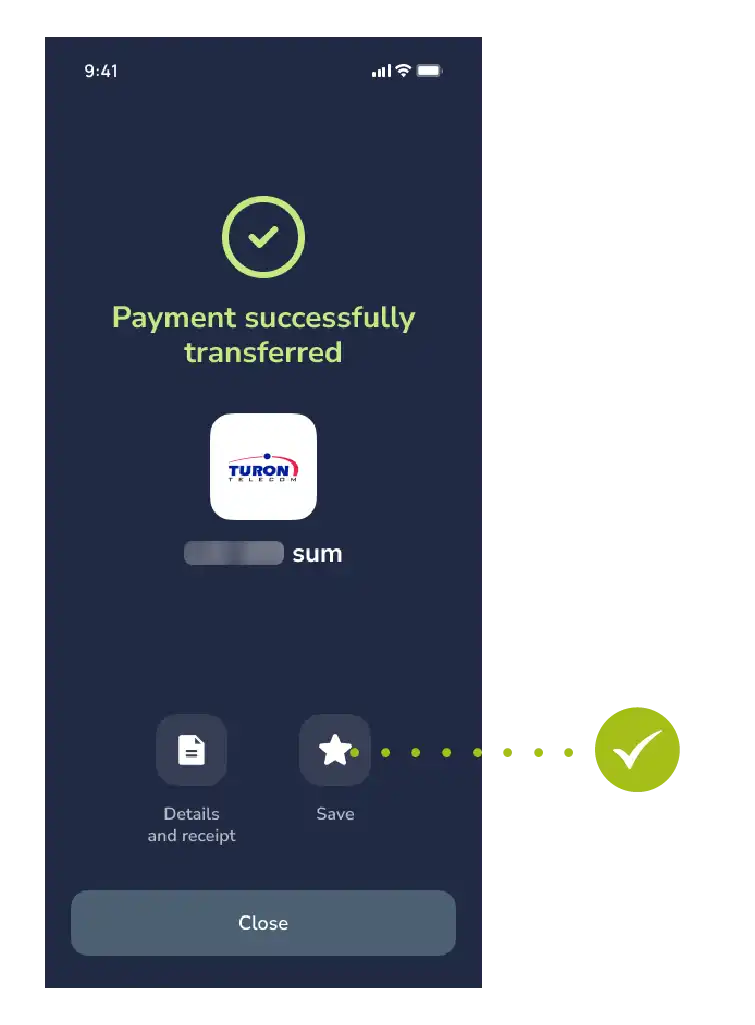
Once the payment is successfully completed, tap the “Save” button that appears on the receipt or result window.
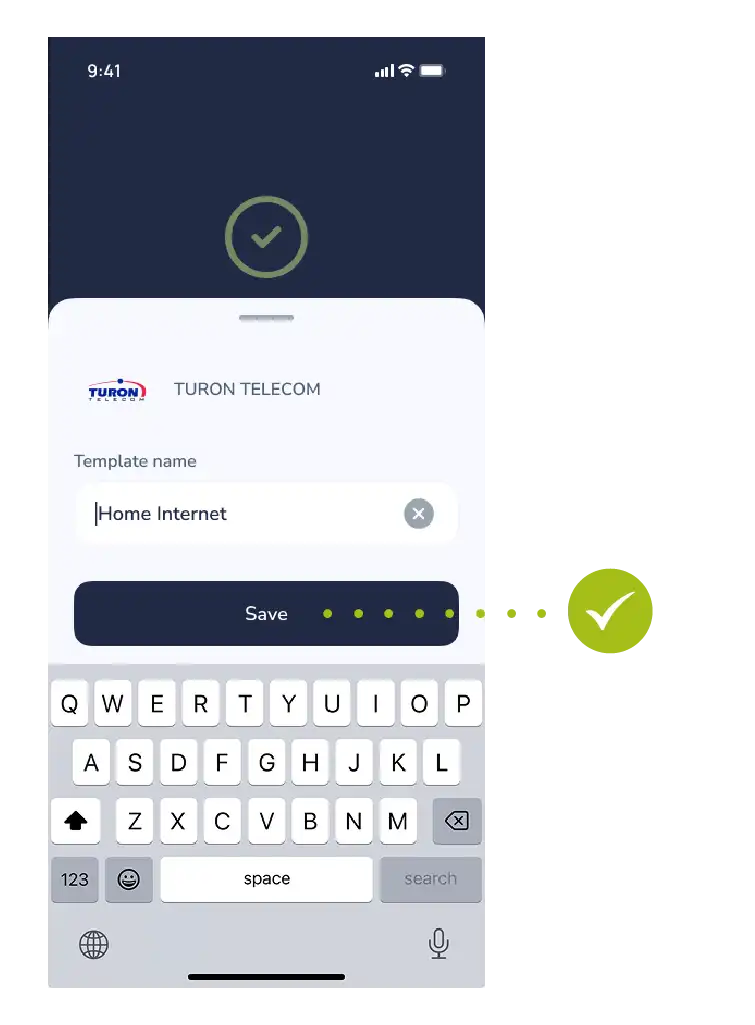
In the window that opens, give this payment a name that is clear to you (for example: “Home Internet”, “My Number”, or “Electricity”).
- 3
Confirmation and Usage
Once the name is entered, tap the “Save” button once again to complete the action.
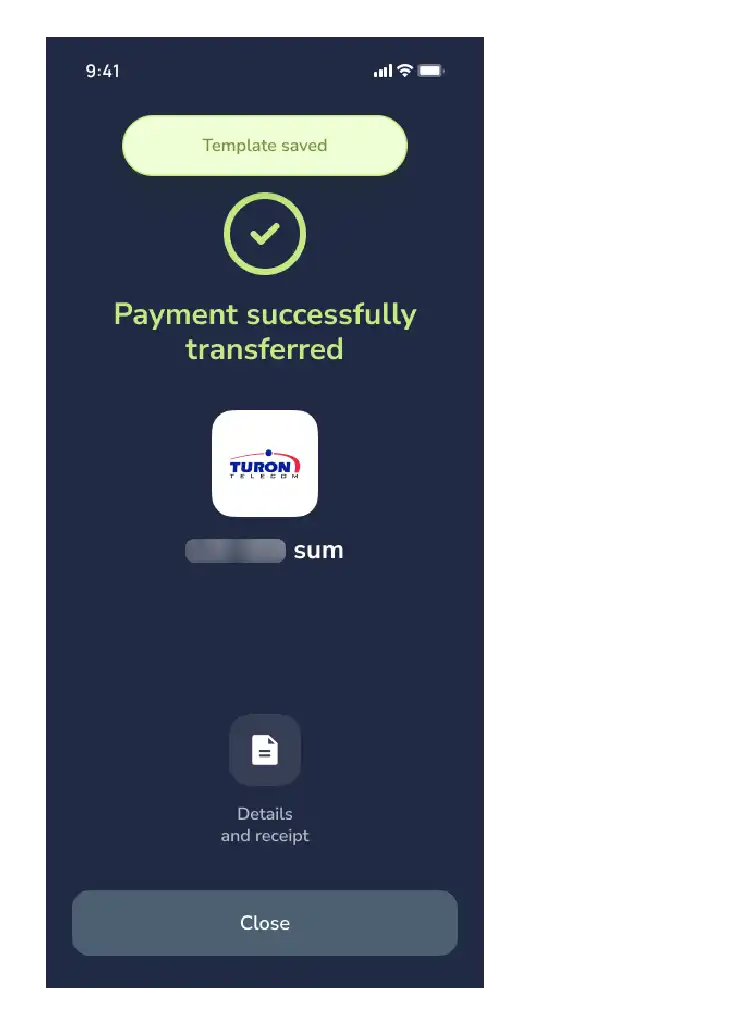
This completes the process.
Now this payment template will permanently appear in the “Saved Payments” section of the main menu.
Contact us
We are here to help.


Questions about your card
Call the bank that issued your card.
- Xalq Bank1106
- Aloqabank+998 71 230 77 77

Call from the app
In the main menu, tap “Contact” — the headphones button. Then tap “Call”.


