
Order card
This manual explains the procedure for remotely ordering a new bank card. The process involves selecting a bank, choosing a service point, and confirming the application. This service allows users to submit requests without visiting bank branches and includes a system for remote notification regarding the application status.
Follow this sequence to obtain a new bank card:
Step 1: Selecting the Service
- Tap the “Order a card” button located on the main page or in the relevant section of the app.
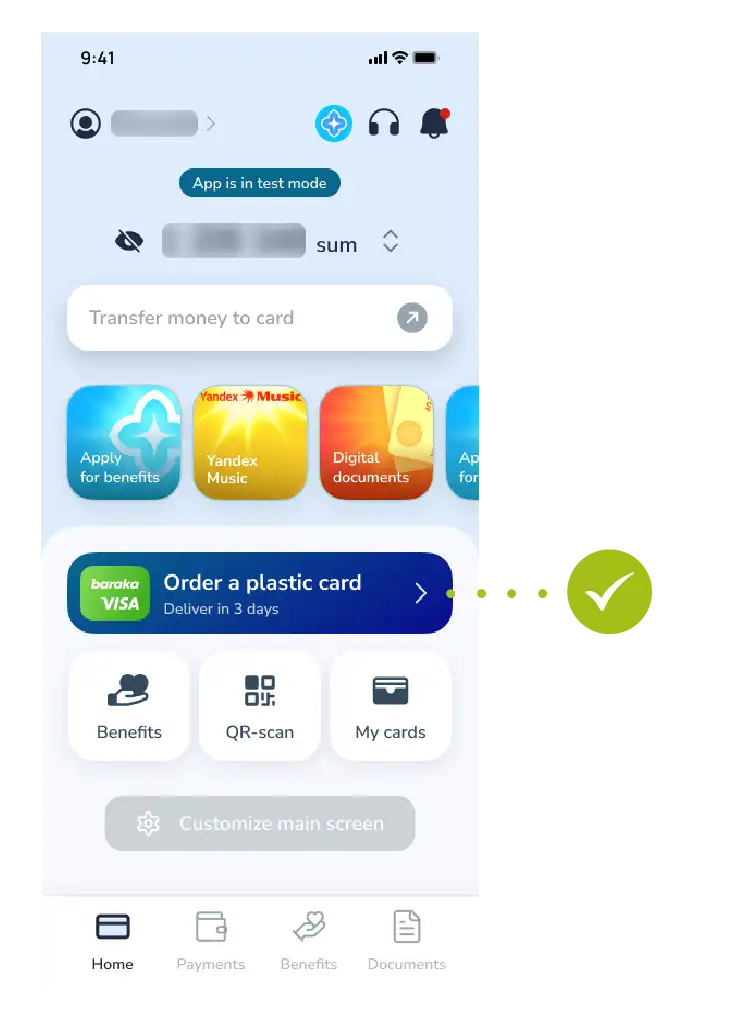
Step 2: Starting the Process
- Review the information and tap the “Next” button to continue.
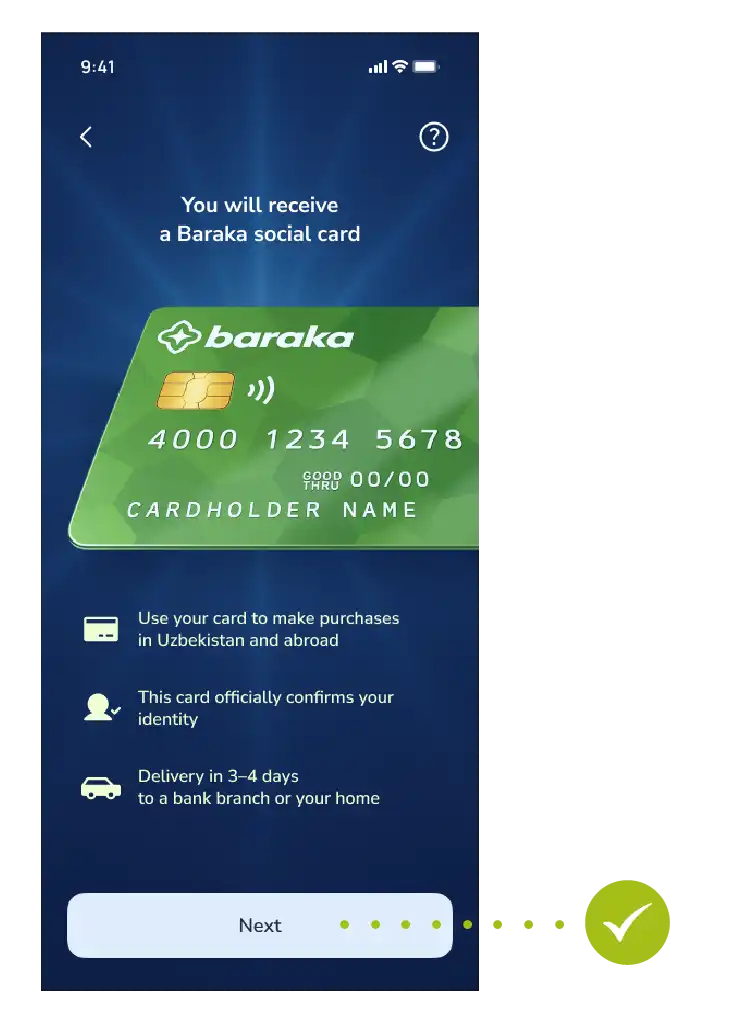
Step 3: Selecting the Bank
- Review the list of partner banks offered in the system and choose the bank whose terms suit you best.
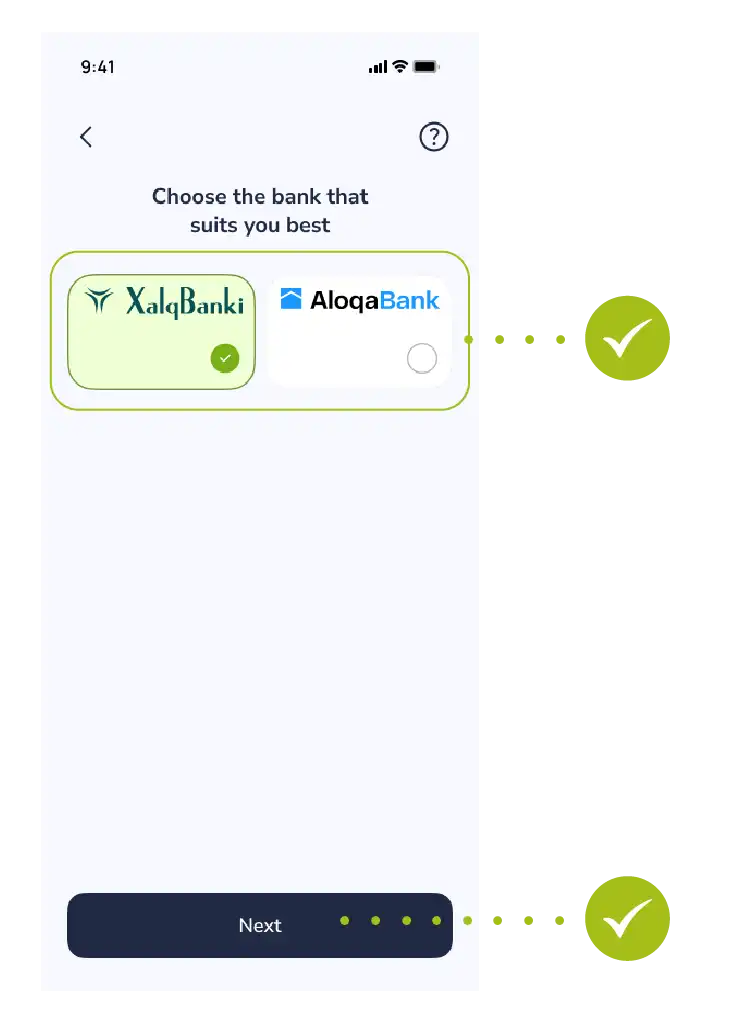
Step 4: Selecting the Branch
- Once the card is ready, select the nearest or most convenient bank branch from the list to pick it up.
- Make sure the selected details (bank and branch name) are correct and tap the “Next” button.
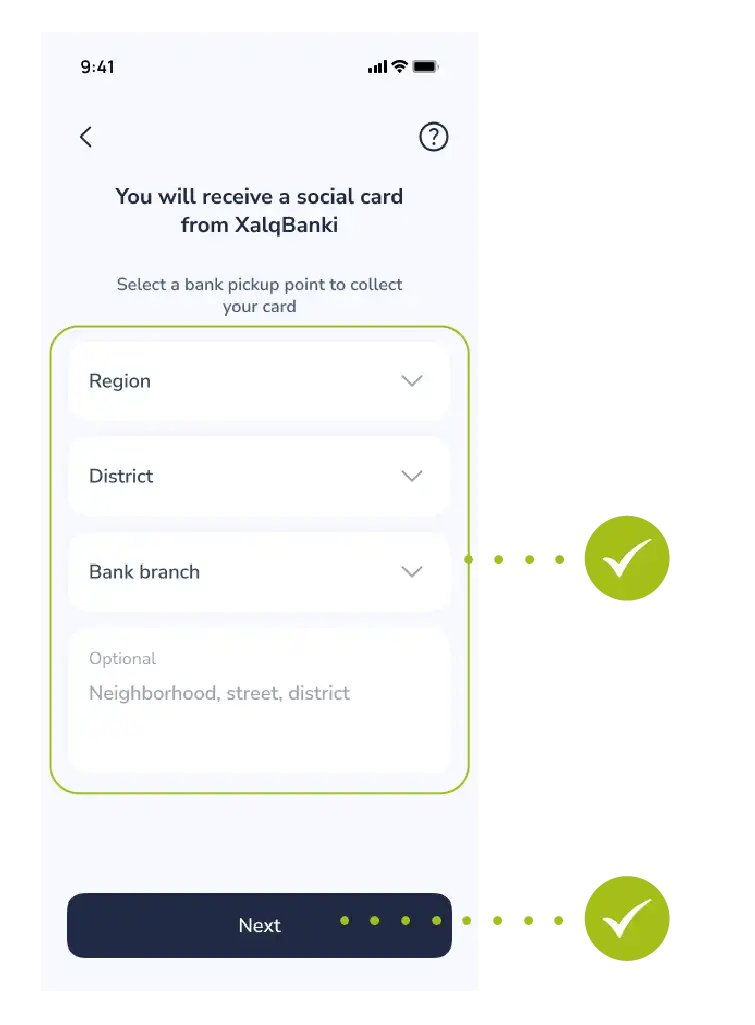
Step 5: Submitting the Application
- Once all steps are completed, tap the “Confirm” button to process the request.
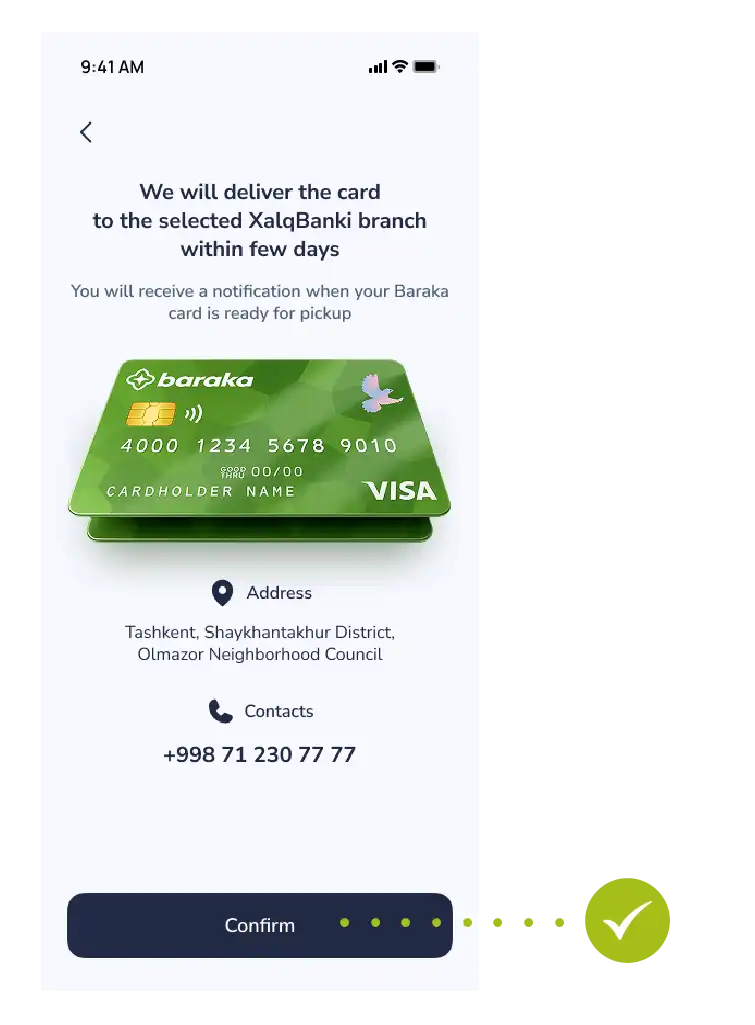
Step 6: Selecting a Payment Method
After pressing the confirmation button, the system will automatically redirect you to the payment section. Choose a payment method that is convenient for you:
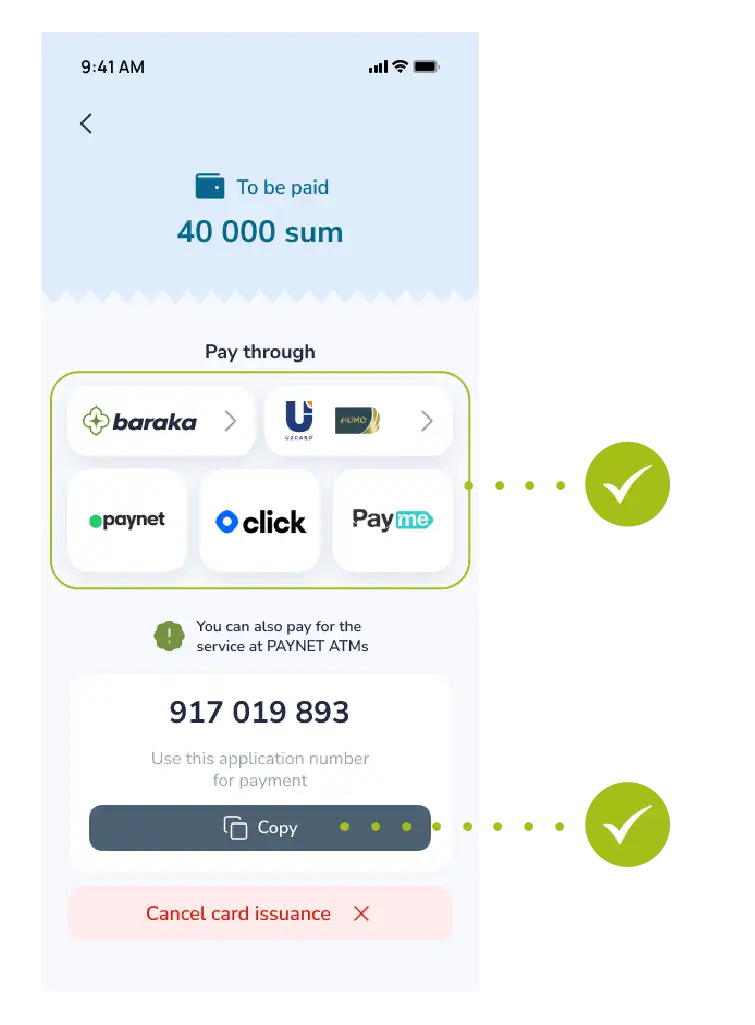
- Baraka card or Uzcard/Humo bank cards;
- Paynet, Click, or Payme electronic payment systems.
Useful Tip: If your chosen payment app (Click, Payme, or Paynet) is installed on your device (phone), the system will automatically switch to that app and open a ready-to-pay invoice.
Alternatively, you can pay in cash via PAYNET ATMs using the provided unique 9-digit ID number.
Step 7: Completing the Payment
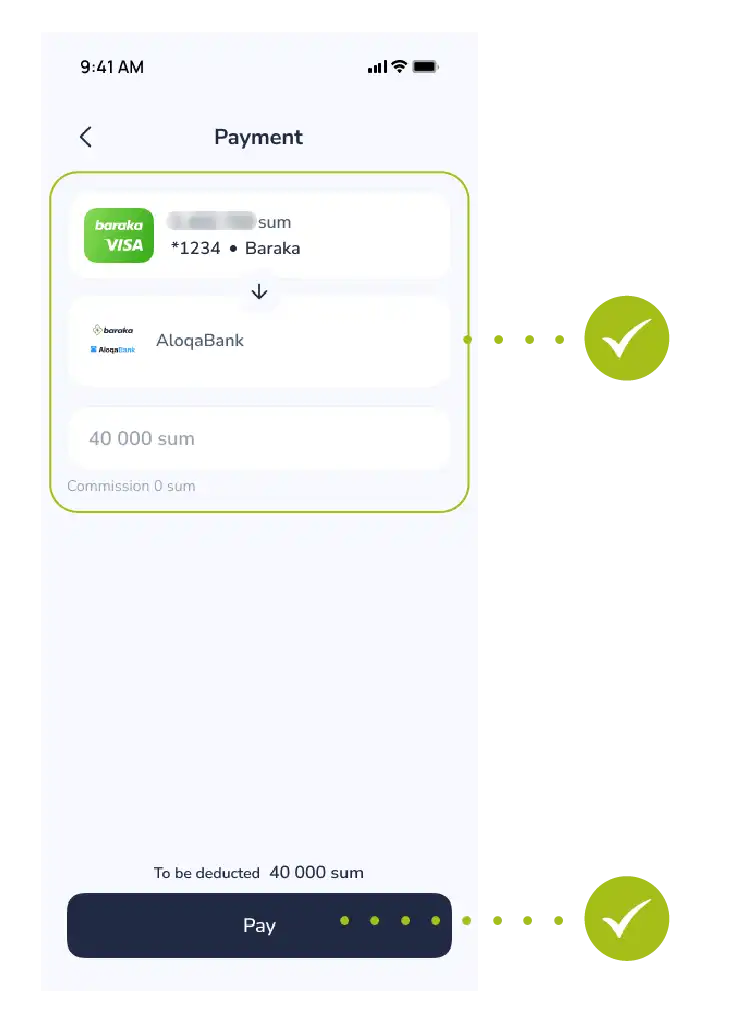
- A window showing the payment details and the service fee (40,000 UZS) will open within the app. Simply press the “Pay” button to complete the transaction.
Step 8: Successful Payment Status
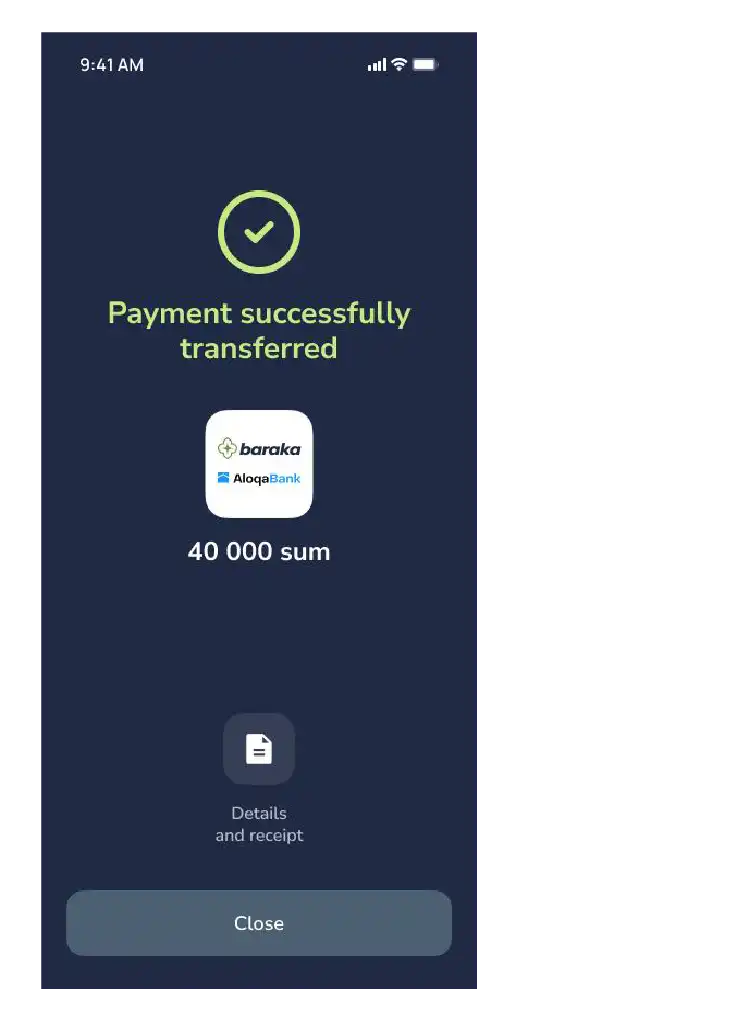
- Once the payment is successfully completed, a “Payment successful” message will appear on the screen along with a green checkmark. Here you can:
- Download the payment receipt via the “Details and Receipt” button;
- Press the “Close” button to move on to tracking the card preparation progress.
- Notification: Once the bank issues (completes) your card, a notification will be sent to your registered phone number or via the app.
After that, you can visit the selected branch and collect your card.

