
Registration
This manual outlines the procedure for creating a new user account and obtaining access to services within the “Baraka” mobile application. The registration process covers the entry of personal data, verification of the contact number, and completion of the identification process in accordance with security requirements. Following the steps provided in this guide ensures the security of user data and enables full access to the system’s features integrated with public services.
Step-by-Step Guide to Registering on the Baraka App.Follow these simple steps to fully utilize the features of the Baraka app.
Each step is designed to ensure your security and data accuracy.
Step 1. Downloading and Starting the App
- Depending on your smartphone type, search for and download the “Baraka” app from Google Play or the App Store.
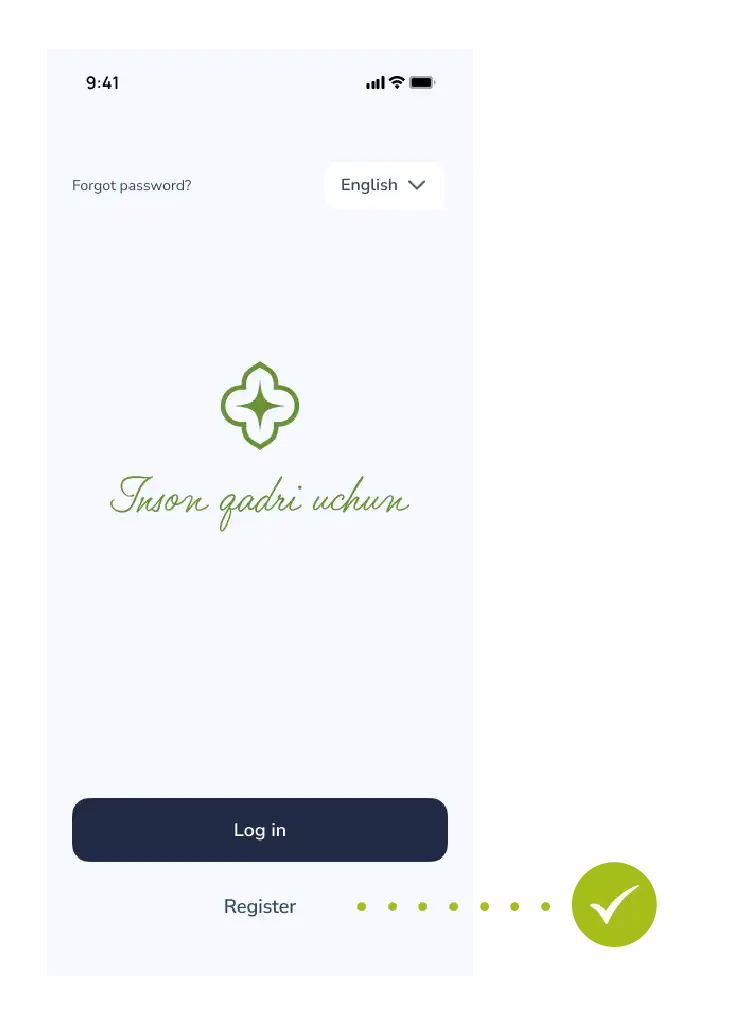
- Launch the app and tap the “Register” button on the main screen.
Step 2. Entering Personal Information
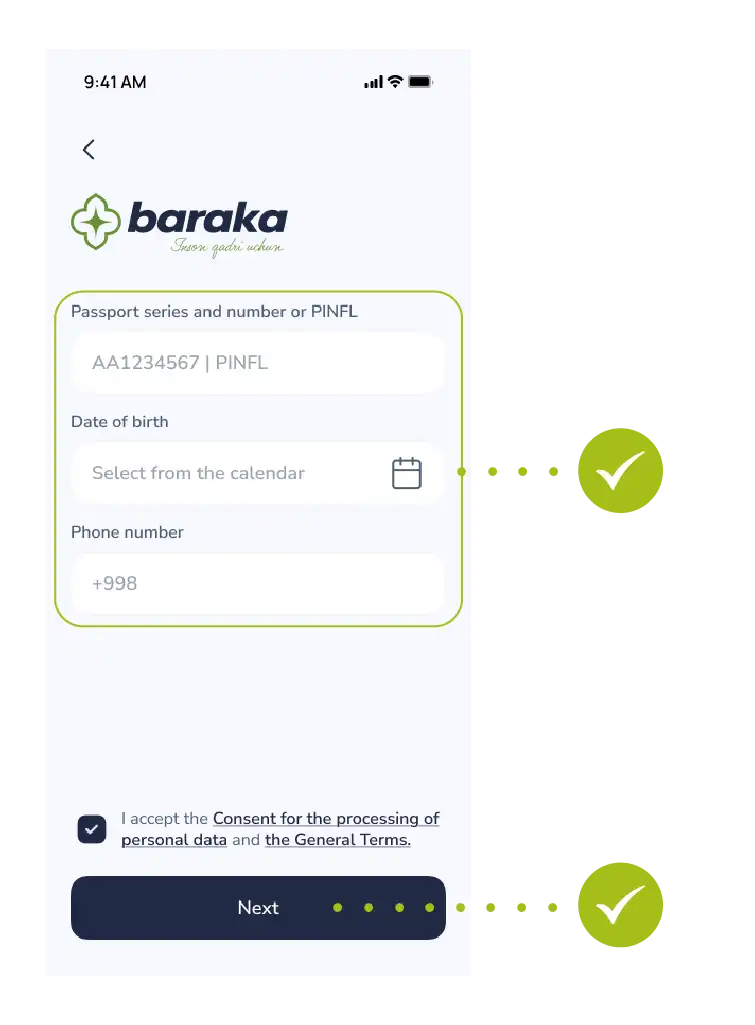
This section requires accurate data for integration with government services:
- PINFL (JSHSHIR). Enter the 14-digit number located at the bottom of your passport.
- Passport Details. Enter your passport series and number without errors.
- Date of Birth. Select your day, month, and year from the calendar.
- Phone Number. Enter your currently active contact number.
- Public Offer. Carefully read the terms of use and the public offer, then check the confirmation box.
- Tap the “Next” button to continue.
Step 3. Phone Number Verification (OTP)
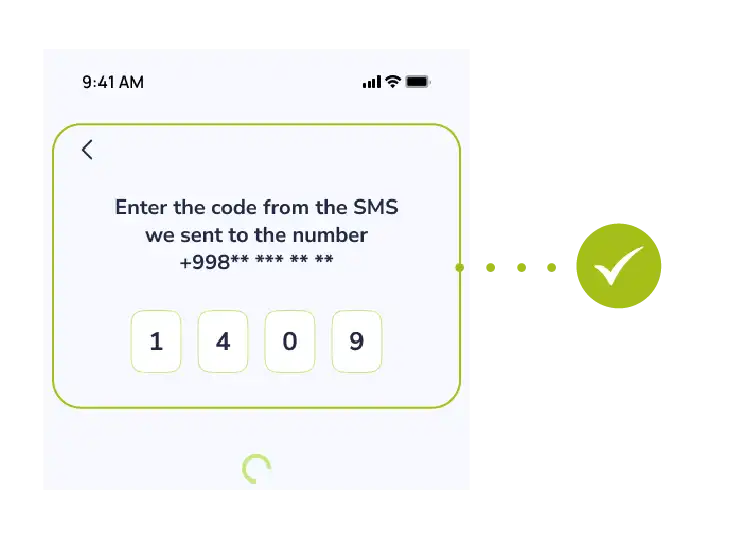
- A 4-digit secret code will be sent via SMS to the phone number you entered.
- Enter this code into the designated field in the app. This confirms that your number is active.
Step 4. Identification and Security
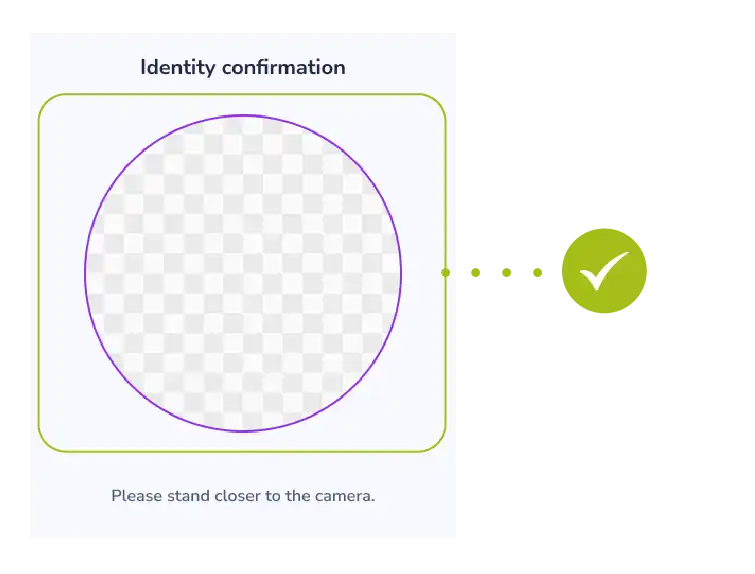
- Identity Verification. In accordance with security requirements, complete Face-ID or another type of identification process.
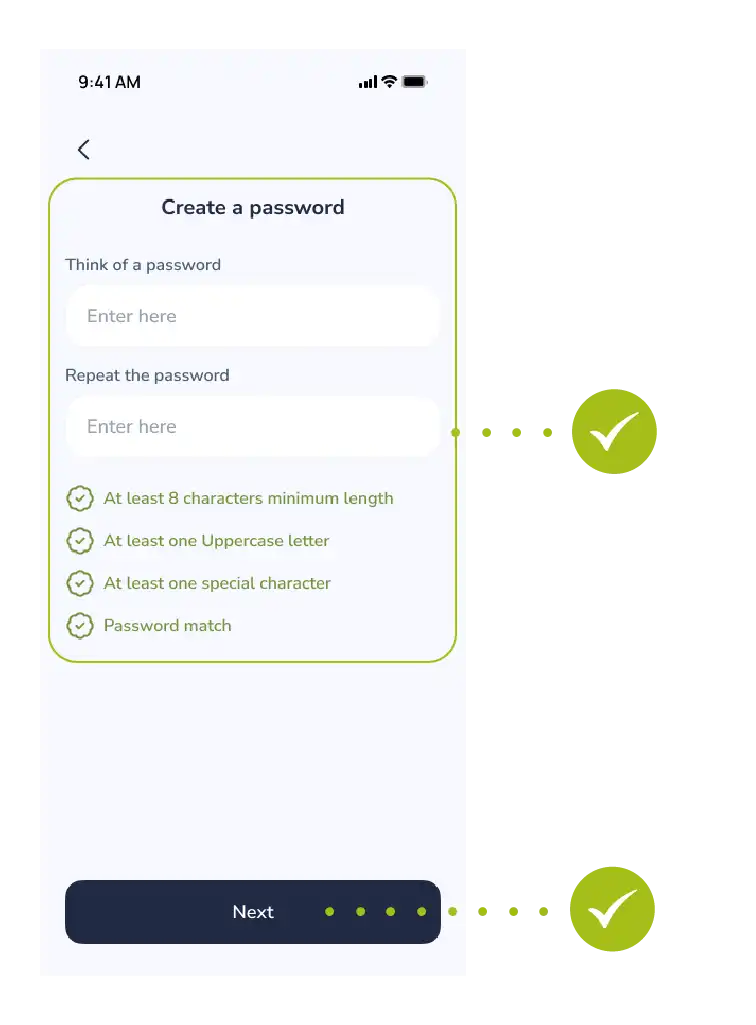
- Create a Password. Think of a complex yet memorable new password to log into the app. Follow the password requirements and tap the “Save” button.
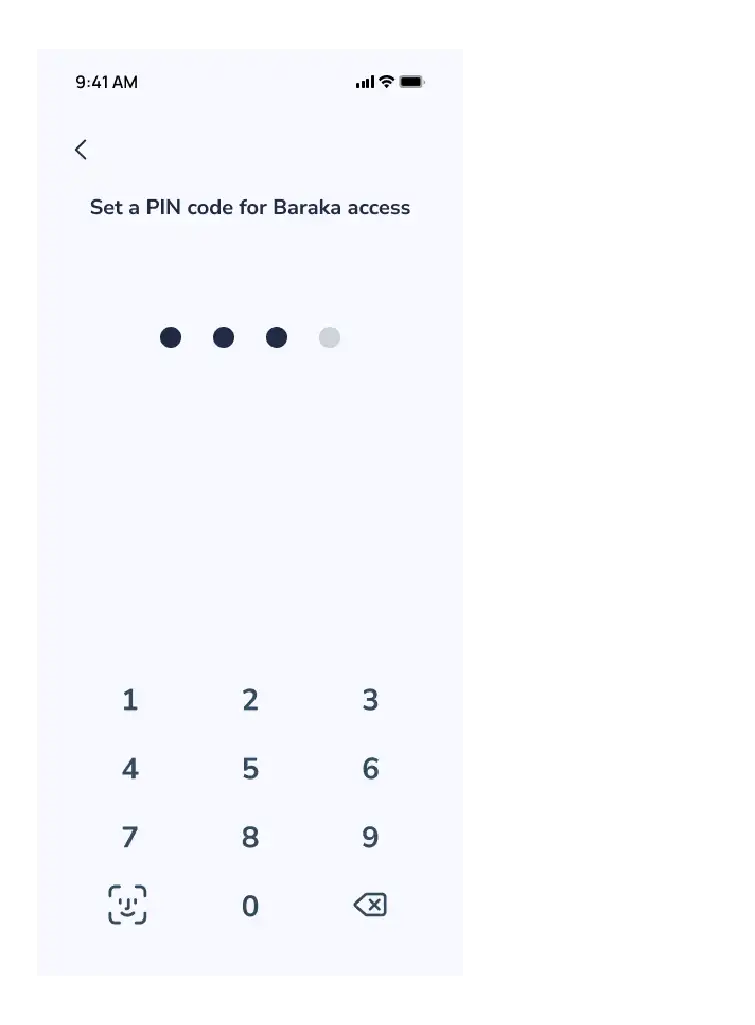
- Set a PIN Code. Create a special 4 or 6-digit PIN code for quick access to the app each time, and confirm it by re-entering.
Tabriklaymiz! Ro‘yxatdan o‘tish jarayoni muvaffaqiyatli yakunlandi.
Step 5. Logging into the App and Personal Account
Once registered, follow these steps to log into the system:
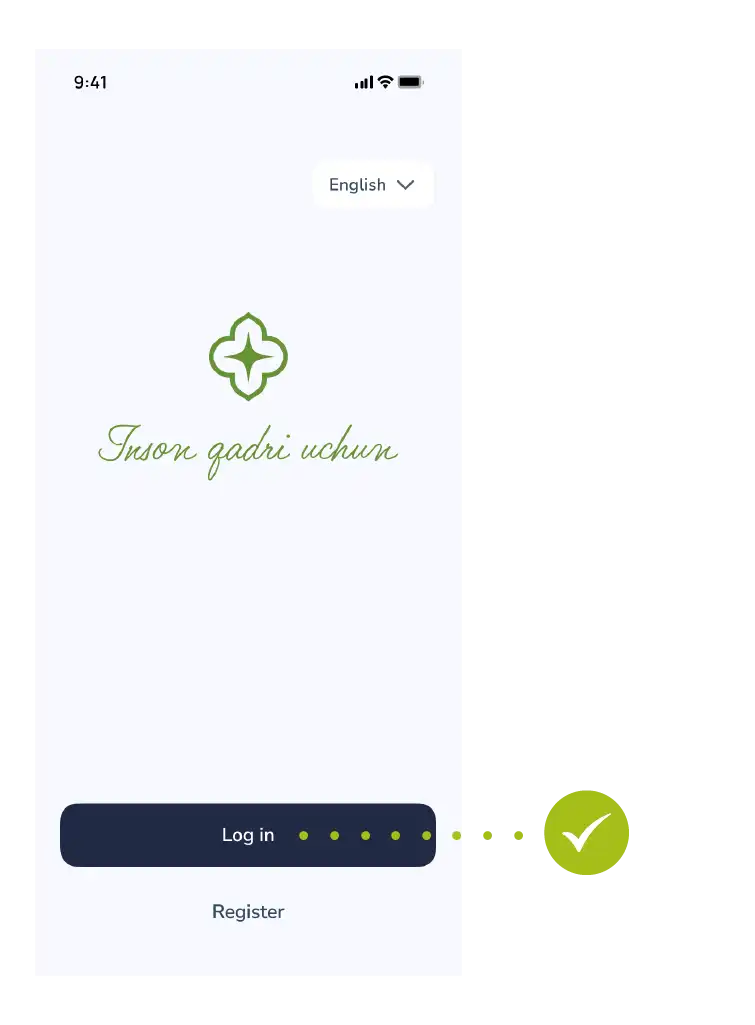
- Tap the “Login” button on the main menu.
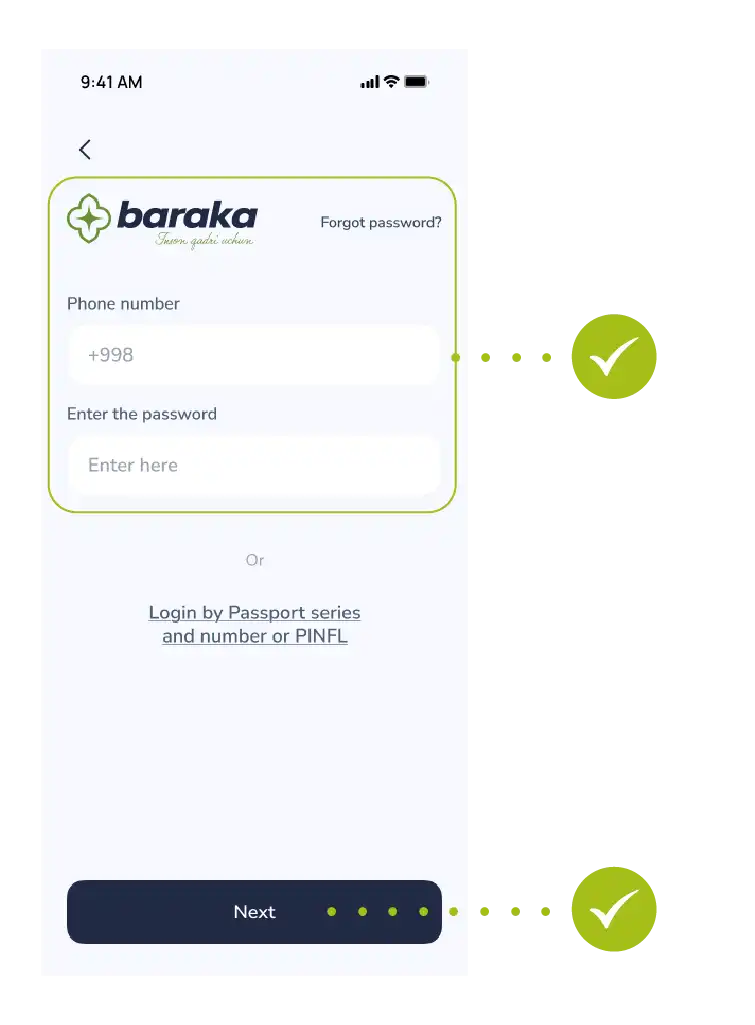
- Enter your PINFL number and your newly created password.
- Enter the one-time OTP code received via SMS to access your personal account.
- When you log into your personal account for the first time, the following message may appear on the screen:
“After your registration, your information will be verified by the authorized authorities.”
“Determining the existence of an allowance, its type, and category may take up to 3 hours.”
“Please wait for the verification process to complete.”
- Note: While the verification is ongoing, you can explore all other services, menus, and news within the app.
Once the verification is complete, all features (allowance details, etc.) will be fully activated.

